Jarvis Reach offers flexible strategies to keep your leads organized. Learn how to leverage folders and tags to categorize and manage your contacts efficiently.
Using Folders to Group Contacts
Folders in Jarvis Reach act like digital filing cabinets, allowing you to group related contacts for specific projects, campaigns, or teams.
How to Use Folders:
- Create a New Folder:
- Access your Jarvis Reach dashboard.
- Navigate to the ‘Leads’ section.
- Click the option to create a new folder (e.g., ‘My First Folder’).
- Add Contacts to a Folder:
- From the ‘People’ section, discover potential leads using search filters.
- As you find relevant profiles, directly add them to your chosen folder (e.g., ‘Sales Campaign Q3’). Ensure the correct folder is selected for automatic saving.
- View and Manage Contacts in a Folder:
- Return to your Jarvis Reach dashboard and open your chosen folder in the ‘Leads’ section. Refresh the page to see all added profiles.
- From here, you can review, search, and manage your contacts, including assigning ‘Sequence’ and adding the ‘Lead Status’ feature to classify their pipeline position.
Benefits of Folder-Based Organization:
- Facilitates individual project management.
- Enhances searching and listing performance, especially with large contact lists, by segmenting them.
- Keeps different projects separated for clarity.
- Supports parallel project execution and scalability.
Using Tags for Granular Segmentation
Tags offer a flexible way to add specific attributes or sub-categories to contacts within folders. They are excellent for creating detailed classifications within broader groups.
How to Use Tags:
- Add Contacts to a General Folder:
- Access your Jarvis Reach web dashboard and select or create a general folder (e.g., ‘Recruitment Pool’).
- Navigate to the ‘People’ section, discover leads using search and filters, and add them to this general folder.
- Apply Tags to Contacts:
- Return to your Jarvis Reach web dashboard and open your chosen folder (e.g., ‘My First Folder’) in the ‘Leads’ section.
- Select the contacts you wish to tag and apply the relevant tag (e.g., ‘Engineer Candidates’ or ‘UX Candidates’).
Tips for Tag Usage:
- Contacts can be tagged individually or in bulk after being added to a folder.
- Segment your list extensively using tags to maintain manageability and filterability as your database grows.
Benefits of Tag-Based Organization:
- Allows versatile, general-purpose contact lists for future activities or multiple classifications.
- Provides granular segmentation within a single folder.
Jarvis Reach is designed to keep your contact database clean and efficient. Our smart system actively manages duplicates, ensuring an organized and up-to-date record of your prospects.
Does Jarvis Reach create duplicate contacts if I add them twice? No, our intelligent system automatically identifies duplicates. If you attempt to add the same contact more than once, it seamlessly merges any new information with the existing contact record, keeping your database organized and saving you time and effort.
Are there additional credit charges for duplicates? No, we do not charge additional credits for re-adding a contact that our system recognizes as a duplicate. Once we’ve successfully charged for the original contact’s enrichment, no further credits will be deducted for subsequent additions of that same individual.
Will my contacts be updated if I add them again? Yes, absolutely. Our system will automatically check for and apply any updates to the contact’s information. If there are changes in their role, company details, or other relevant data since the last enrichment, these will be reflected in your Jarvis Reach contact profile, ensuring your data is always current and actionable.
Jarvis Reach offers flexible ways to organize your contacts. If you’re transitioning your lead management strategy from tags to folders, you can easily move contacts to ensure a seamless organizational structure.
How to Move Contacts from Tags to Folders:
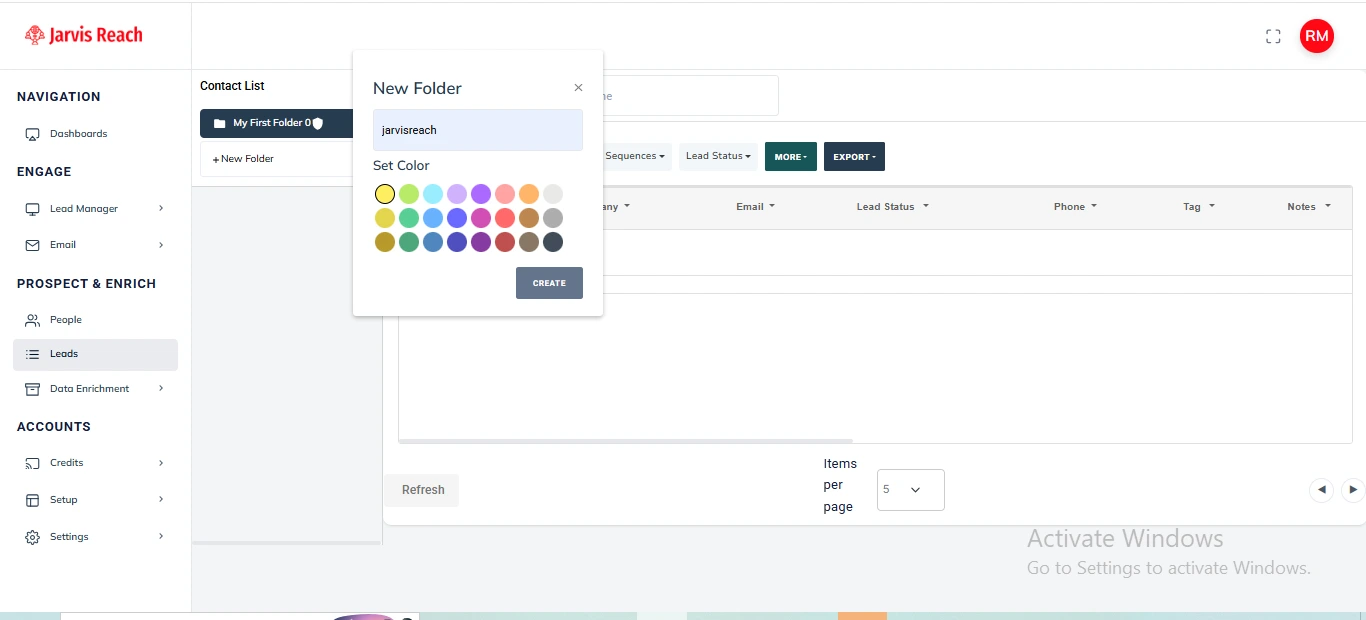
- Create Your New Folder:
- Navigate to the ‘Leads‘ section on your dashboard and create the new folder where you want to move your contacts. You can give it the same name or color as your existing tag for consistency.
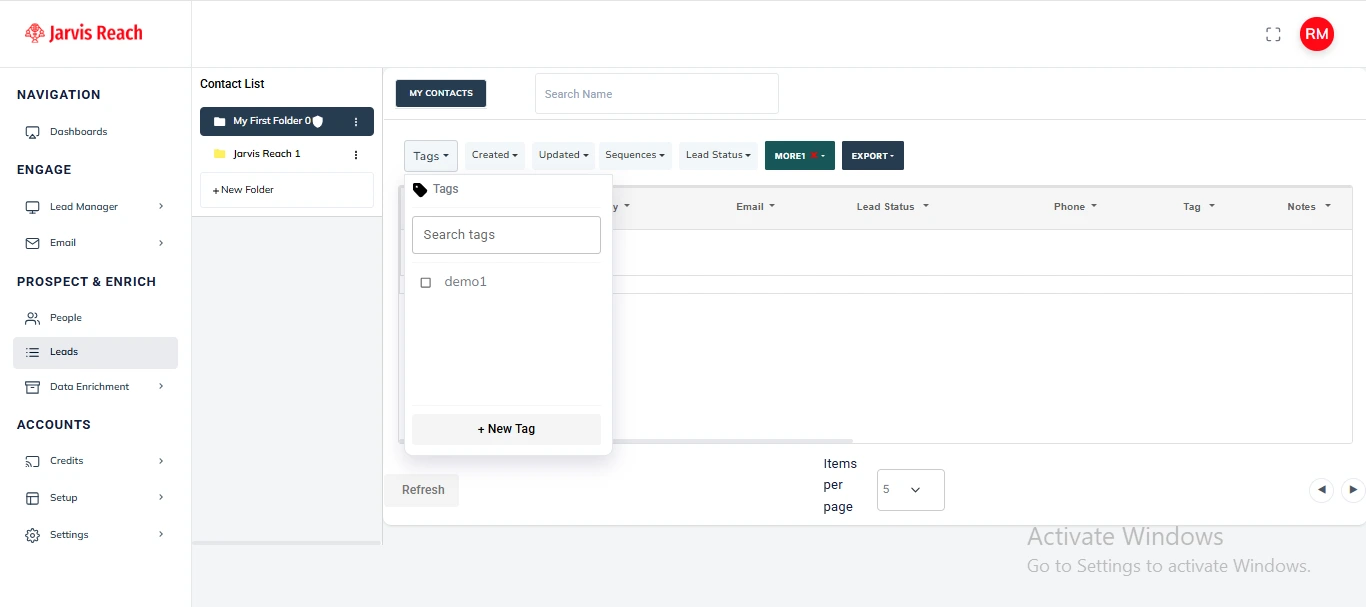
2. Filter Contacts by Tag:
- Within your ‘Leads’ section, apply a filter to display only the contacts associated with the specific tag you wish to transfer. Select all the relevant contacts from this filtered list.
3. Move Contacts to Folder:
- With the desired contacts selected, click on the ‘Move to Folder’ option (or a similar action icon) and choose the new folder you just created from the list.
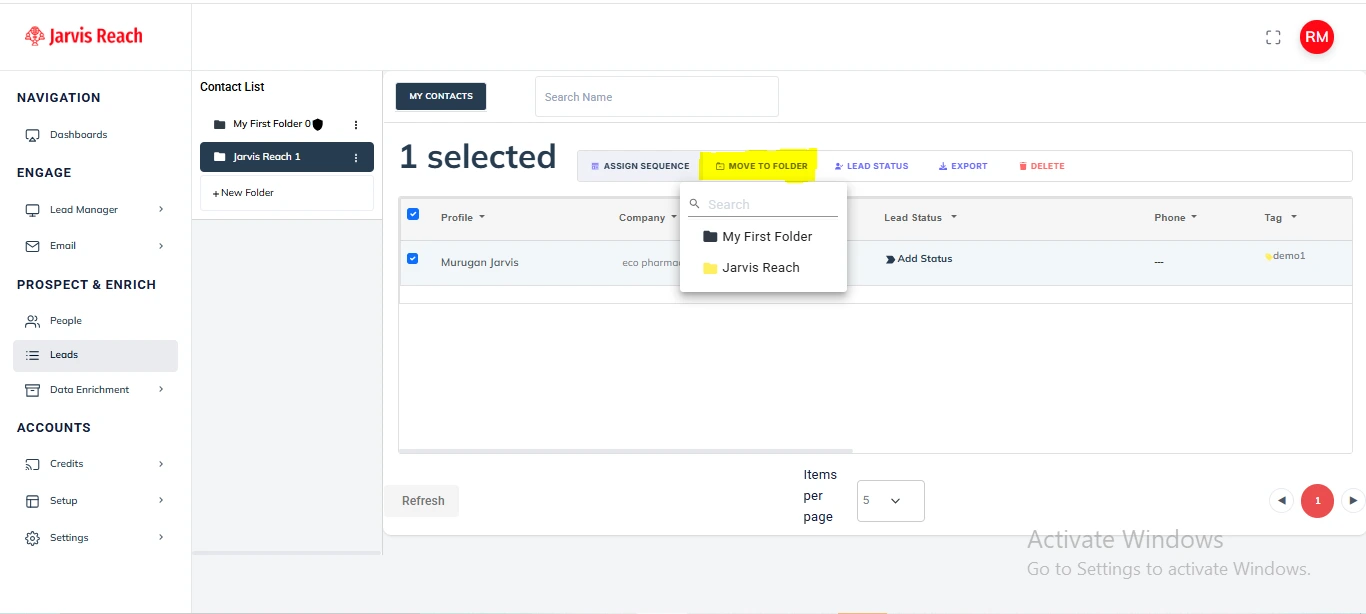
Your contacts are now efficiently organized in their new folder within Jarvis Reach.
Jarvis Reach allows you to take full control over your lead data output. With an active paid subscription, you can precisely tailor your exports, ensuring you get exactly the information you need for seamless integration with other tools and efficient data management.
Important Note on Export Limits:
- Basic Plan: Export up to 50% of your enriched contacts to CSV/Excel.
- Advance Plan: Export up to 75% of your enriched contacts to CSV/Excel.
- Enterprise Plan: Export 100% of your enriched contacts to CSV/Excel.
How to Customize Your Exports:
1. Select Your Leads:
- Navigate to the ‘Leads‘ section on your dashboard and choose the leads you wish to export.
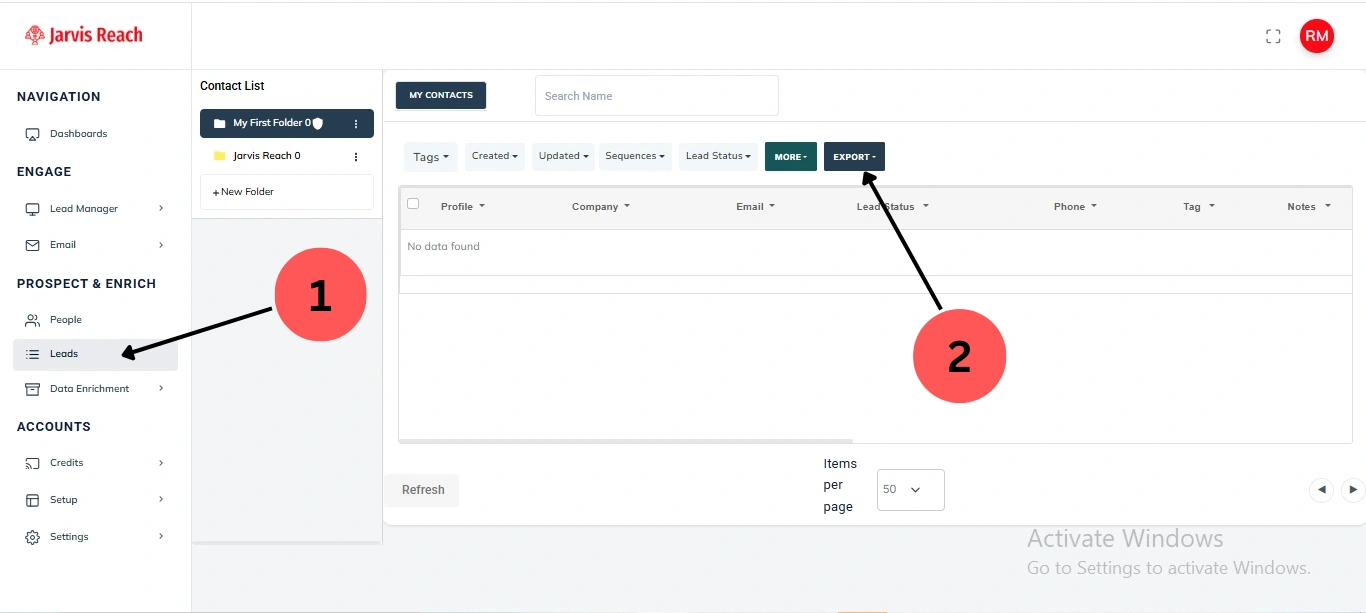
2. Initiate Export:
- Click on the ‘Export‘ button.
3. Choose ‘Custom’ Fields:
- In the export options, select ‘Custom‘ for field selection.
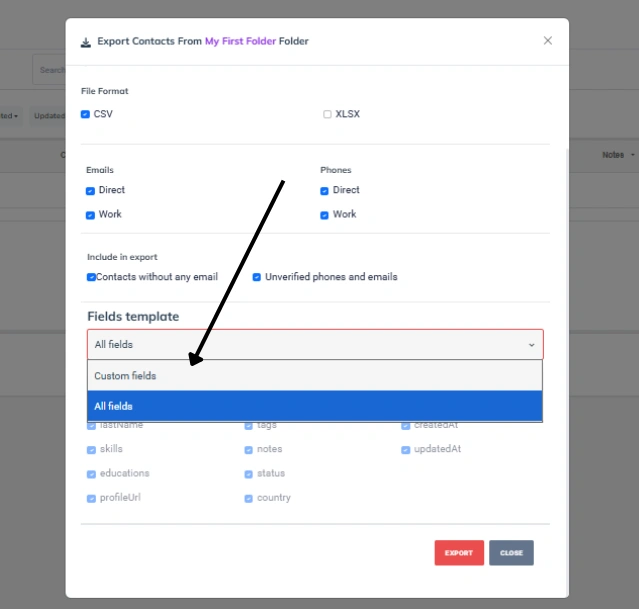
4. Select Desired Fields:
- From the list of available fields, select only those that you wish to include in your exported file.
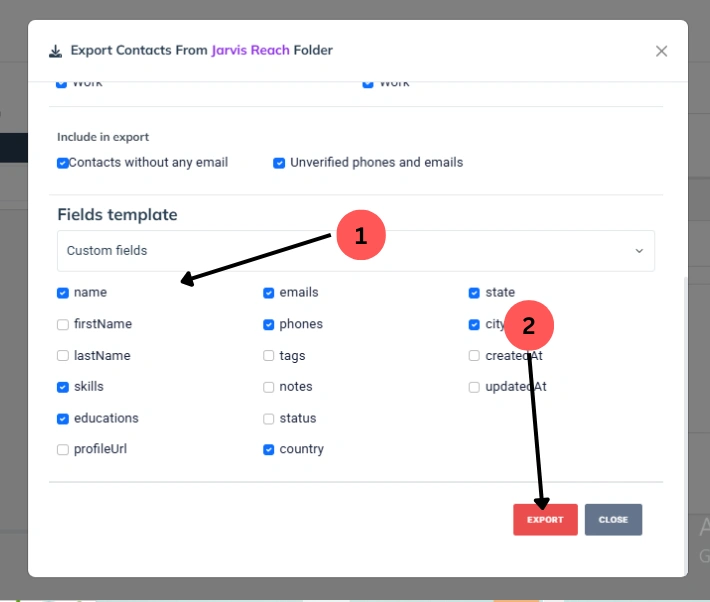
5. Start Export:
- Click ‘Export‘ to begin the data export process.
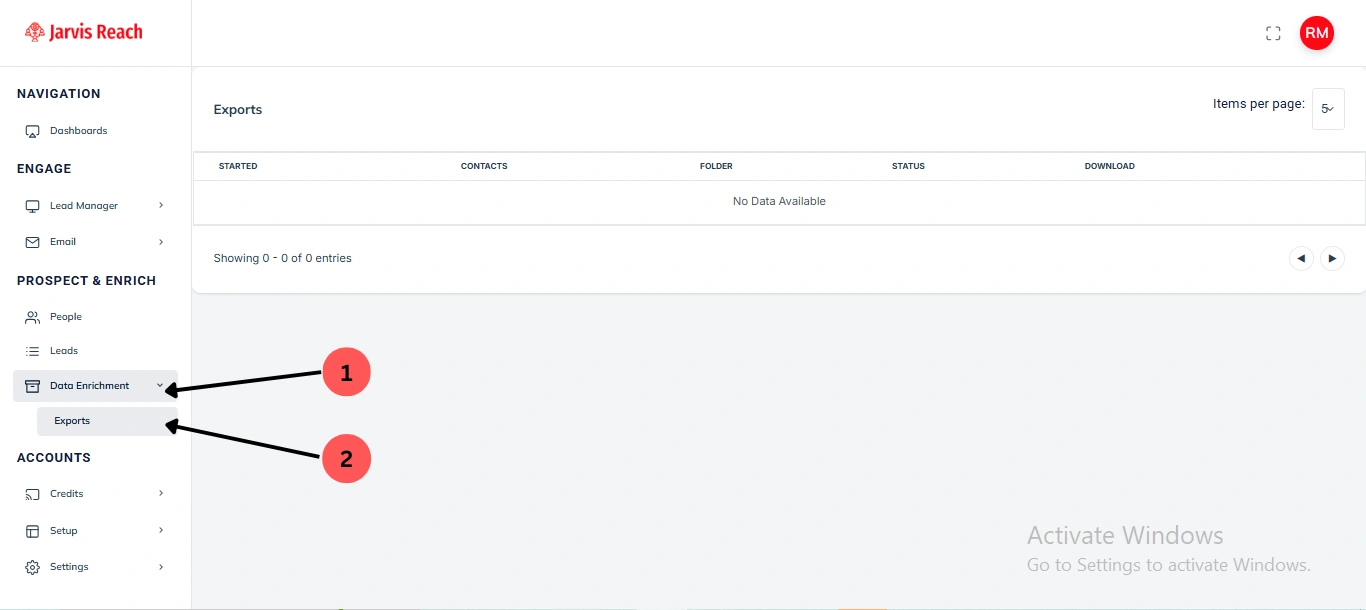
Accessing Your Exported File: Once the export is complete, your customized file will be available for download in the ‘Data Enrichment’ > ‘Export’ section. You will typically receive a notification when the file is ready.